
You can add stickers to a page.
Click the Image button on the toolbar.

You will see the Choose an image dialog.
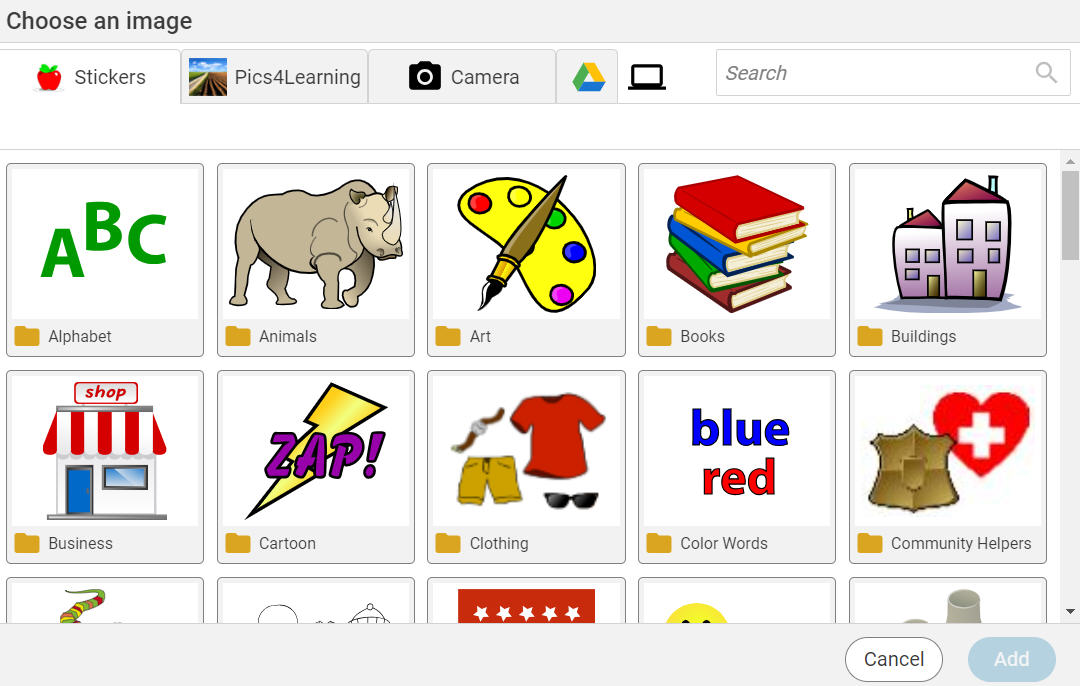
Use the scrollbar to see all of the folders.
Click a folder to open it.
You will see stickers or more folders for categories of stickers.
Click a folder to open it.
You will see all of the stickers.
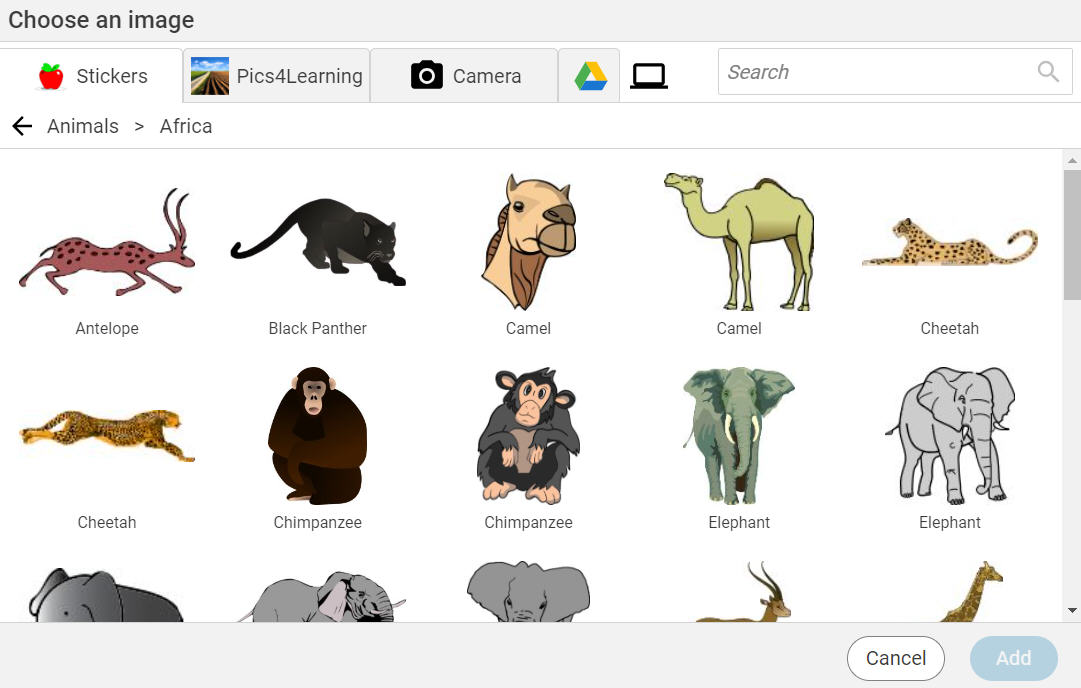
Use the scrollbar to see all of the stickers.
Click a sticker.

You will see the Choose an image dialog.
Click a folder to open it.
You will see stickers or more folders for categories of stickers.
Click a folder to open it.
You will see all of the stickers.
Use the scrollbar to see all of the stickers.
Click a sticker.
Note: To add multiple images at one time, hold down the Shift key on the keyboard and click each image you want to add.
Click the Add button.
The sticker will be added to the page.
Click and drag the sticker to the place you want it.
Use the resize handles to change the size of the sticker.
Click the Add button.
The sticker will be added to the page.
Click and drag the sticker to the place you want it.
Use the resize handles to change the size of the sticker.