Wixie has two different interfaces you can choose to match the needs of your learners.
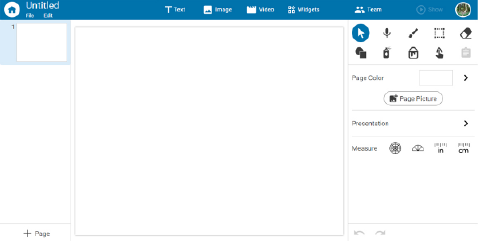
Wixie has two interface themes: Standard and Primary.
The Standard interface is the default for all new users
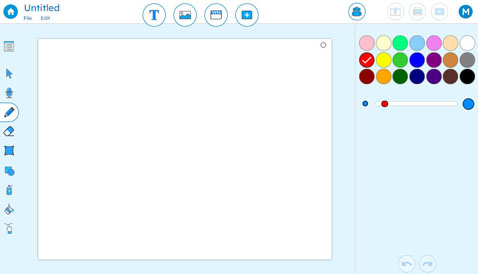
The Primary theme has a look that is brighter, larger, and has a simplified feature set to make it easier for younger students to get started making their first projects.
Teachers can choose the Wixie interface that best matches the needs of their classroom and learners. Consider using the Primary interface if you are working with younger students or think your learners would benefit from a smaller set of choices.
What is different in the Primary interface?
In order to make Wixie simpler to use, the Primary interface has fewer options. For example, at the student home page, the new button (+ symbol) does not have a menu, but simply begins a new blank project in landscape mode.

The Primary interface for the authoring application has larger, simpler icons. Options on the tools panel are also simplified. For example, there are no brush options and a limited color set. When a text object is added, the options are also reduced.
Which interface should I choose for my learners?
If you and your students have successfully used the Standard interface in the past, you may not want to use the primary version, since you have already learned how to guide your students through more tools and options. But if you have felt that Wixie was too challenging for some of your learners, then the Primary interface may be just the option you need.
Choose an Interface for yourself, your classes, or specific students.
To switch the theme for yourself, in your teacher account, click your Profile icon and choose Switch Theme.
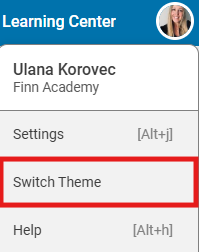
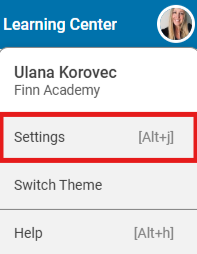
To apply the Primary or Standard interface to all of your classes, visit your Profile Image in your teacher account and choose Settings:
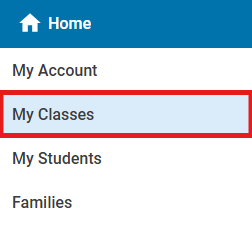
Then choose My Classes.
To the right of each of your classes, select the Preferences button to adjust the theme for each class.
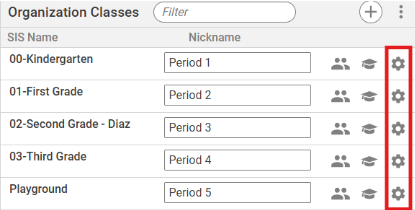
Choose the theme you want for that class and repeat steps for any remaining classes.
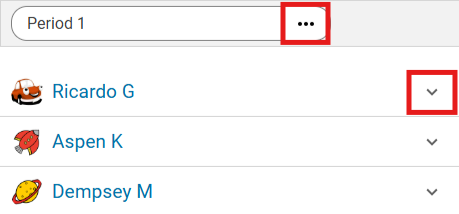
If you would like to adjust the theme for a specific student select My Students:
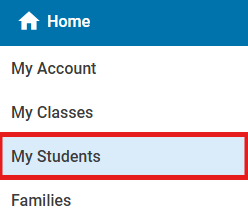
Choose a class at the three dots and then select the down arrow for the student you would like to change.