
You can add a magic sticker to make interactive games or assignments that are unique each time a student starts them.
Magic Stickers are Widgets that a Wixie user clicks or that have their appearance set when a user opens a project.

You will see the Widgets dialog.
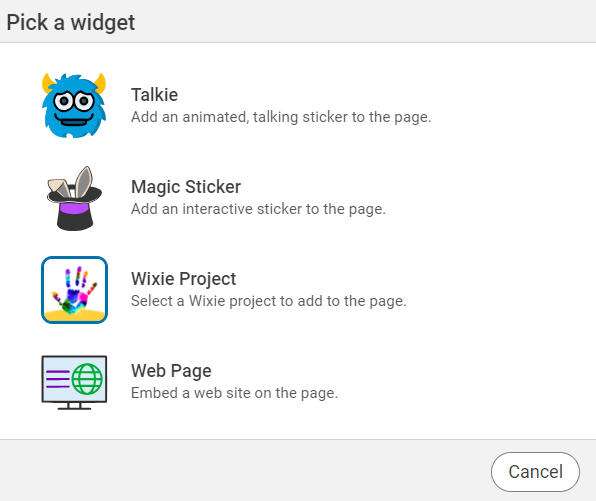
Select the Magic Stickers option.
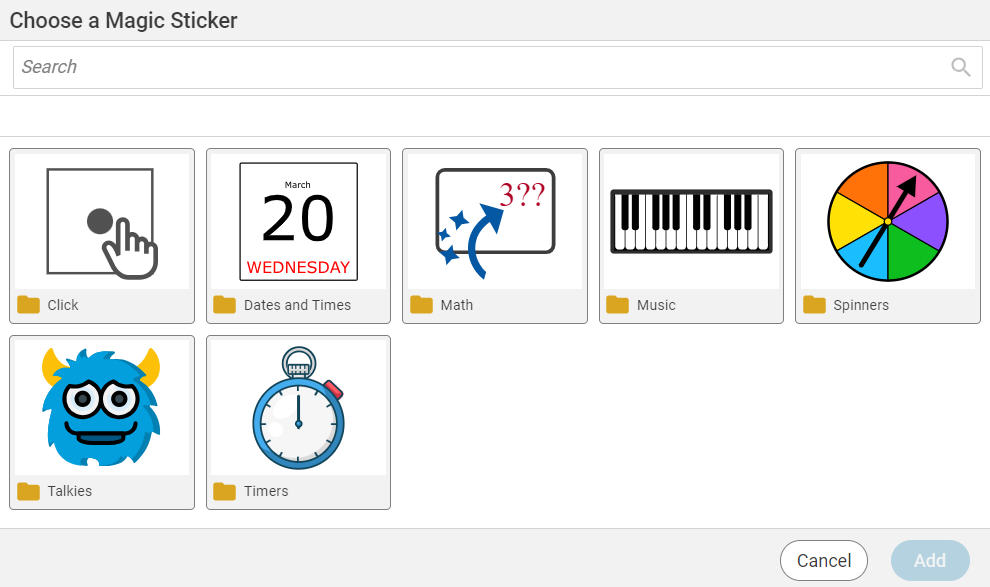
You will see a dialog with folders for different types of magic stickers.
Note: If you want to learn about talkies, go to the Add a Talkie help entry.
Open a folder, such as Click.
Select the magic sticker you want to use and click the Add button.
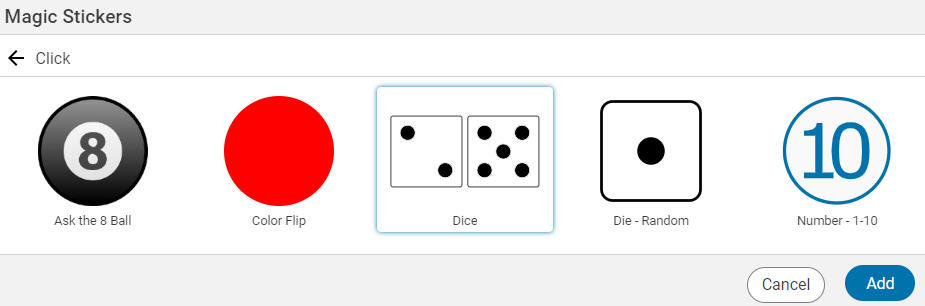
You will see the sticker on the page.
Click the Show button and click the sticker to see the magic!

If you want to interact with a magic sticker while you are working, click the Edit button to return to editing and select the Lock button the options panel.
Magic Stickers that change when clicked
Some Magic Stickers, like the dice, spinners, and timers, work when a user clicks them.
These are great for games as well as counting, calculation, and even probability activities. You can also add musical instruments like keyboards and xylophones that the user can play.
Magic Stickers that change when a project is opened the first time
Some magic stickers have their appearance set when a user opens the file. This type of Magic Sticker makes it easy to create math practice assignments that have unique content each time they are opened, like this fraction worksheet.
Other example of templates using this type of magic sticker are base10 blocks and telling time.
Note: If you are designing an assignment, these stickers will change every time you load a page (move between multiple pages or open a page). They will be set permanently when the student opens the assignment.