
You can use the Speech option for an object to code and play music.
To see this feature in action, click the keys on the keyboard below to play the song. Then, keep reading to learn how to create this yourself.
To code music on your own, add an image to a project.
Select the image, go to the File menu, click Edit, and choose Edit Alt Text.
You will see the Alt Text dialog.
Add an open bracket, followed by "tone:". Then add in tones and durations separated by commas and completed by a closed bracket.

The note range is C0 - B8 . C0 is a C note at the lowest octave. B8 is a B note at the highest octave.
The duration is beats in a 4/4 timescale (4 beats is one measure). Beats can be decimals. .5 is a half note and .25 is a quarter note.
For example, if you add [tone: C4, .25] and add a close bracket, clicking the Speech icon on the object will play a middle C tone for a quarter beat.

Add multiple tones and beats, separated by a comma to play a song. For example, the first few measures of Three Blind Mice would be coded as: [tone: E4 1, D4 1, C4 1, R 1, E4 1, D4 0.5, D4 0.5, C4 1]
To hear the music coded in a Wixie project, the user clicks on the Speech icon on an object.
To set an entire object to play the tones, select it, and then go to the File menu, click Edit, and choose Properties.
You will see the Properties dialog.
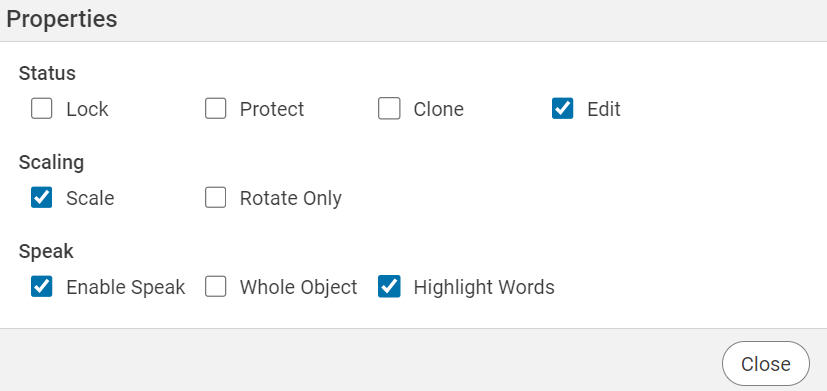
Select the Whole Object check box.
Additional Information
Each tone is defined as the note name and an octave similar to what you will find on a piano keyboard.