
You can use Wixie's text-to-speech options to make written information accessible to a wider range of learners.
When working in Wixie's editor, users will see a text-to-speech icon (yellow megaphone) on the left side of all objects and text boxes.
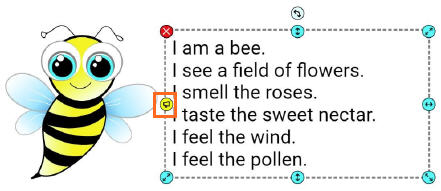
Users can click this icon to have the computer read the text to them.
So what’s the buzz about?
Text-to-speech empowers students to actively review and edit their work.
Students can use text-to-speech to hear the words they have written. Listening to their writing helps them more easily identify unclear phrases, misspelled words, and confusing sentence formation.
- Students can more easily hear missed punctuation and understand why it is useful.
- As they listen to the flow of their writing, students can adjust word choice and structure.
Text-to-speech supports student comprehension.
Auditory learners, and learners with visual and reading limitations, can use text-to-speech to listen to information over and over to aid in comprehension.
- Non-readers can hear text they are unable to read on their own.
- Listening to text as they read it provides an important scaffold for emerging readers.
Text-to-speech supports second-language learning.
Using text-to-speech benefits comprehension, fluency, and pronunciation for second-language learners.
- Language learners can listen to pronunciation of challenging words like phone or thyme.
- Listening to their writing, helps them hear errors in word order or sentence construction.
Using the text-to-speech tools empowers a wide range of students to edit their writing and work independently.