






Digital Valentines Day Ideas
Grades: 1-5
Digital Valentine's Day Ideas
Rather than buying and exchanging printed and candy-filled Valentines, students craft a digital Valentine's Day message and then print or exchange electronically.
This lesson was inspired by Melissa Amory of Brookfield Elementary in Fairfax County Public School, Virginia. She shared:
"I moved my usual Valentine exchange to Wixie, and I'm realizing that this increases equity! All my students got the same project, all of them have the same tools, all of them have had the same opportunities to learn Wixie tricks, they all have the same opportunity to participate."Step 1: Create the Valentines
There are a variety of ways to make Valentines in Wixie. For example, you could assign each student a blank page or a template like Decorate a Heart and have students use the paint tools to decorate and the microphone and text tool to share their message.
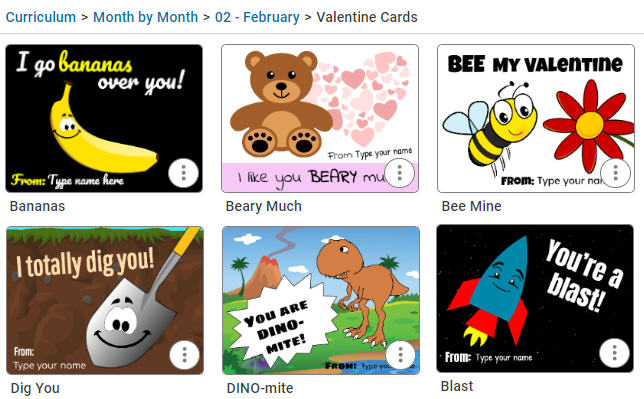
Students can also use one of the many talkie Valentine's Day templates, such as the I Totally Dig You option to animate their messages.
The February Month-by-Month folder includes an entire folder of Valentine Card templates to help students get started.
Within the folder, you can even find options for printable Valentine's Day cards, as well.
Step 2: Share
If students created talkie Valentine's Day cards, have students share the URL to their projects. Be sure students instruct their recipients to click the Show button or select the talkie to hear their message.
If you want to print student work to distribute physical copies in class, students can go to the File menu and choose Print. Students can take advantage of the ability to print multiple copies onto a single page to make traditionally-sized Valentine's Day cards.
Check the Repeat Pages option at the Print dialog to print multiple copies of a single design to fill the printed page with the number of cards based on the size and layout you choose. Print the number of pages you need to give one to each student. Then, have students cut them out and share with classmates.
Step 3: Collect student work into one file
Printed valentines are a great option, but if your students added voice narration or used a talkie option and you would like to share them with friends and family, you will want to take advantage of a digital sharing option.
In this case, combine student work into one file using the Project Wizard to make it easier to share.
Step 4: Distribute
Once all the pages are in one project, it's time to distribute!
- Use the project URL to paste in an email or social media post.
- Go to the File menu and choose Share to use the embed code to add the collected Valentine's Day messages on your classroom web page.
Happy Valentine's Day!